How to Save a Google Doc as a PDF, on Any Device
On a computer it's File, Download, PDF. Here's that, the phone steps, what to do when the PDF option won't show up, and a button that does it in one click.
 by Blaine V.
To save a Google Doc as a PDF on a computer, open it and click File, then Download, then PDF Document (.pdf). You get a separate PDF copy, and the Doc itself stays exactly as it was. Below: the phone version, what to do when a Doc won't cooperate, and a button that does the whole thing in one click.
On a computer
This works the same on Windows, Mac and a Chromebook, in whatever browser you use Google Docs in.
- Open the Doc.
- Click File, then Download.
- Pick PDF Document (.pdf).
The PDF lands wherever your browser saves downloads, usually your Downloads folder.
There's a second way, through printing:
- Click File, then Print.
- In the print window, set the destination to Save as PDF (that's Chrome's and Edge's wording; other browsers have their own PDF option in the same place).
- Click Save.
Use this one when you want a say in the result: only some of the pages, or a different paper size. It's also worth a try when a very long Doc won't download the first way.
On iPhone or iPad
You do this in the Google Docs app, not the browser:
- Open the document.
- Tap the three-dot menu.
- Tap Share & export, then Send a copy.
- Pick PDF.
- Your share sheet opens. Tap Save to Files to keep the PDF, or send it straight to Mail, Messages or any other app.
The iPad runs the same Google Docs app as the iPhone, so the steps are the same there.
On Android
Android's Google Docs app gets you to the same place, though the menus aren't worded quite the same as on an iPhone:
- Open the document in the Google Docs app.
- Tap the three-dot menu.
- Tap Share & export.
- Choose to save or send a copy, and pick PDF as the format.
One click: a Save as PDF button in the Doc
If you turn Docs into PDFs every week, the File, Download, PDF trip gets old. The PrintFriendly extension for Chrome or Edge can put a Save as PDF button right in the Doc's title bar, just to the left of Share. Click it and you get a PDF named after the document. No menus.
You switch it on in the extension's settings:
- Click the PrintFriendly button in your browser toolbar and open Settings (the gear).
- Go to Where PrintFriendly Appears.
- Under Google, turn on Google Docs.
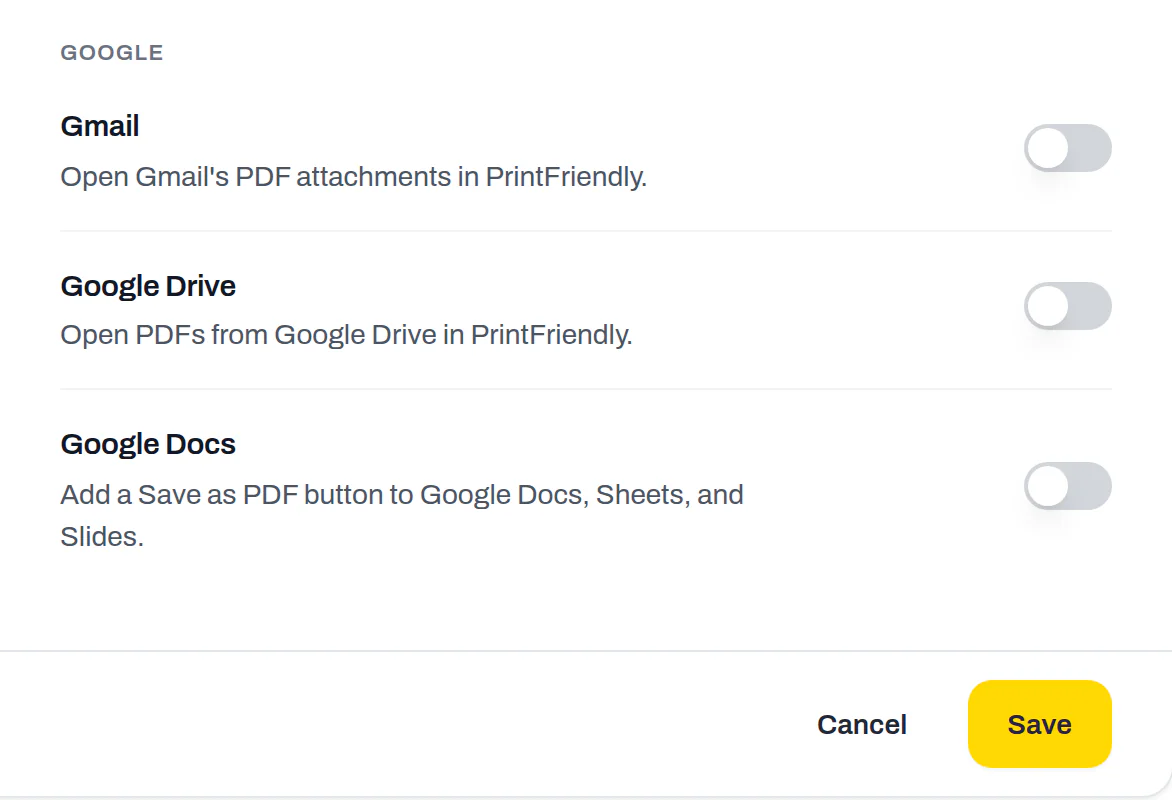
The same switch adds the button to Google Sheets and Slides. In a narrow window it shrinks down to just the PrintFriendly logo, so it doesn't crowd your toolbar. This is Chrome and Edge only.
Keep the layout the way you meant it
A PDF freezes the Doc as pages, so anything that only looked fine on screen shows up here. Before you save, check:
- Page breaks. A heading stranded at the bottom of a page, or a table split across two, is easy to fix with a page break.
- Wide tables and images. If one already runs right up to the margins, it'll be tight in the PDF too. Shrink it, or turn that page sideways (here's how to make a page landscape in Google Docs).
- Headers and footers. They come along into the PDF, so make sure they say what you want.
- Paper size and orientation. Both live in File, Page setup. Letter and A4 aren't the same shape, and that matters if the person on the other end prints it.
Then open the PDF and flip through it before you send it. That goes double for a CV, where a stray blank page is the first thing someone notices.
When it won't save as a PDF
It's a Doc someone shared with you, and Download is missing or greyed out. The owner of a file can turn off downloading, printing and copying for the people they shared it with as viewers or commenters. That blocks the Print route too. You can't get around it from your side: ask the owner for a PDF, or for edit access.
It's a very long Doc and the download stalls. Try the Print route from the computer section instead.
Nothing seems to happen when you click. Check whether your browser blocked the download, and allow it for Google Docs if so. A private window is a quick way to rule out another extension getting in the way.
After it's a PDF
The PDF is on your computer, not in Drive. To keep it in Drive, open Drive, click New, then File upload, and pick the PDF.
Saving several Docs that belong together, like chapters or a stack of meeting notes? Put their PDFs into one file with Merge PDF. And if the PDF comes out too big to email, usually because of photos, Compress PDF shrinks it.
Frequently Asked Questions
Can I save a Google Doc as a PDF on my iPhone?
Yes. In the Google Docs app, open the document, tap the three-dot menu, then Share & export, then Send a copy, and pick PDF. Then choose Save to Files, or send it straight to Mail or Messages.
Why won't my Google Doc save as a PDF?
Check whether it's a Doc someone shared with you. The owner can turn off downloading, printing and copying for viewers, so ask them for a copy or for edit access. A very long Doc may also go through better with File, Print instead of Download.
Does saving a Google Doc as a PDF change the original?
No. You get a separate PDF copy, and the Doc stays exactly as it was, still editable in Google Docs.
Can I save a Google Doc as a PDF straight into Google Drive?
On a computer, Download saves the PDF to your device. To keep it in Drive, upload it afterward: in Drive, click New, then File upload, and pick the PDF.
Sources
- Share and manage access to files and folders in Google Drive - Computer, Google. The owner of a Google Drive file can stop viewers and commenters from downloading, printing and copying it.