Print a Gmail email, or save it as a PDF first?
Printing an email from Gmail and saving it as a PDF start in the same place. The real choice is paper now, a file you keep, or a trimmed version of either.
You need an email somewhere other than your inbox. The booking confirmation for the trip, the receipt for an expense form, the message where the landlord agreed to fix the boiler. Gmail has a print button, and everyone also tells you to "just save it as a PDF". So which one?
Here's the short version: they're the same thing with a different ending. Gmail's print button opens a print preview, and Save as PDF is one of the destinations in it. So the real question is whether you want paper now, a file you can keep and send, or both. And if the email is full of stuff you don't want on the page, there's a third way.
They start in the same place
Open the email in Gmail on your computer. You've got two print buttons:
- Print all, the printer icon near the top right, prints the whole conversation, every message in the thread.
- Print in one message's three-dot menu prints just that message.
Gmail's help page on printing covers both: one message, or everything in the conversation.
Either way, the browser's print preview opens. Choose a printer and you get paper. In Chrome, choose Save as PDF as the destination and you get a file instead. The pages are the same either way: Gmail's own header at the top, the subject, each message's sender, recipients and time, the signatures, and whatever quoted replies are in there.
If you want every click spelled out, including Outlook and Apple Mail, our guide on how to save an email as a PDF has the full steps.
One thing to skip: printing the tab from the browser's own menu while you're in Gmail. That prints the inbox as it looks on screen, sidebar, buttons and all. Use Gmail's print buttons.
When printing straight from Gmail is the right call
Sometimes paper right now is all you need, and Gmail's button is the quickest way to get it.
- It's the fewest clicks. Print, pick the printer, done. No file to name, and nothing to find in your downloads later.
- Nothing to clean up. A PDF you saved once tends to sit in a folder forever. A printout you needed for one afternoon goes in the recycling.
- Short, plain emails print fine. A list to take to the shop, today's directions, a confirmation code for the front desk. If it fits on a page and has nothing in it you mind, there's nothing to improve.
- On a computer that isn't yours. At a library or a friend's place, printing straight away means you don't leave a copy of your email sitting in that computer's downloads folder.
When saving a PDF first is the better habit
A PDF takes a few seconds longer, and it gives you a lot more to work with afterwards.
- You keep a copy outside your inbox. The PDF opens on any device, without signing in to Gmail or being online, and it's still there if the email gets deleted or you stop using that account.
- You can send it on. When a landlord, an accountant or an expense form asks for "the email", a PDF is what they mean, and it looks the same on their screen as on yours.
- You see the pages before you use paper. Open the PDF, check what's there, and print only the pages you need.
- The printer doesn't have to be here. Printer jammed, out of ink, or you don't have one at home? Save the PDF now and print it later, from another computer, at work or at a print shop.
- Several emails, or attachments too. Save each email as a PDF, download the attachments that are already PDFs, and drop them all on Merge PDF to get one file in the order you want. Downloading the merged file takes a free account.
What neither route lets you do
Both routes give you the email exactly as it is. That's often more than you wanted: the signature with three logos and two phone numbers, a newsletter's big header image, the legal paragraph at the bottom, quoted replies with someone else's details in them, and Gmail's own header at the top.
Gmail's print preview lets you choose pages, layout and paper size, but not which parts of the email go on the page. So a one-line receipt can still come out as two pages, and an email you forward as a PDF can still carry a coworker's mobile number from three replies down.
A third way: trim it first with PrintFriendly
If you use Gmail in a desktop browser, the PrintFriendly extension lets you remove parts of the email before you print or save it.
- Open the email in Gmail.
- Click the PrintFriendly button in your browser's toolbar and choose PrintFriendly View. The email opens without Gmail's inbox and buttons around it.
- Click anything you don't want. Delete is already on, and one click removes one block: a paragraph, an image, a list item. Undo brings back the last thing you removed.
- Click Print for paper or PDF for a file.
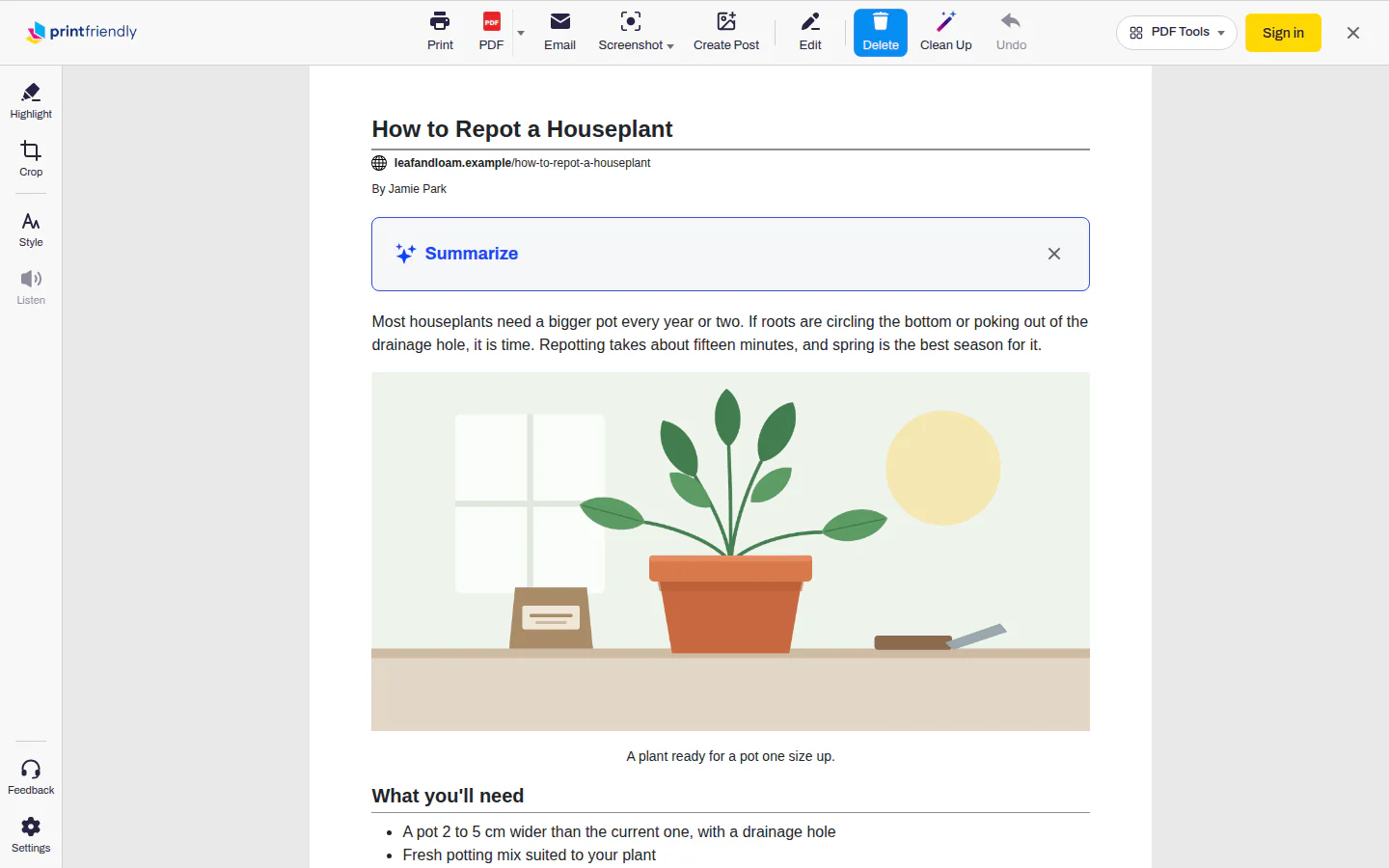
You still end up with paper or a PDF. The difference is that it's only the part you kept. PrintFriendly View can also edit text and highlight lines before you save; the extension features page has the rest.
Where it isn't the best answer:
- It doesn't reach the Gmail app on your phone. It works in Chrome, Edge, Firefox and Safari on a computer.
- For a short, plain email, it's an extra step for nothing. Gmail's own button is quicker.
- It works one email at a time. If you need to export hundreds of emails, or keep attachments inside the same file automatically, dedicated email export add-ons are built for that and PrintFriendly isn't.
On your phone
On a phone, the PDF is on the print screen too. In the Gmail app, open the message's three-dot menu and tap Print.
- Android: at the top of the print screen, change the printer to Save as PDF, then save.
- iPhone and iPad: tap the share button on the print screen and choose Save to Files.
On a phone, saving the PDF is often the easier route anyway, because plenty of phones have never been set up with a printer. Print the file later from a computer.
Side by side
| Gmail's print | Save as PDF from Gmail | PrintFriendly View, then Print or PDF | |
|---|---|---|---|
| What you get | Paper | A PDF file | Paper or a PDF |
| Steps | Print button, pick printer | Print button, Save as PDF, save | Toolbar button, PrintFriendly View, click away blocks, Print or PDF |
| What's on the page | The whole email or thread, with Gmail's header and signatures | The same as the printout | Only what you kept |
| Keep or send it later | No | Yes | Yes, with PDF |
| On a phone | Yes, in the Gmail app | Yes, from the print screen | Not in the Gmail app |
| Needs anything installed | No | No | The browser extension |
Which to use when
- You need a short, plain email on paper once: Gmail's print button.
- You need to keep it, send it, or print it somewhere else later: Save as PDF from the same print preview.
- You're on your phone and it has no printer set up: Save as PDF from the print screen, and print the file later.
- The email is cluttered, or it's going to someone who shouldn't see the rest of the thread: trim it in PrintFriendly View first, then print or save.
- Many emails, or emails with their attachments: save each as a PDF and combine them in Merge PDF, or use an email export add-on if it's hundreds.
Frequently Asked Questions
Is printing from Gmail the same as saving it as a PDF?
Nearly. Both start with Gmail's print button and open the same print preview. Pick a printer and you get paper, pick Save as PDF and you get a file with the same pages on it.
How do I print just the body of an email in Gmail?
Gmail's own print always includes its header, the message details and the signature. Printing one message from its three-dot menu at least leaves out the rest of the conversation. To drop the signature and footer too, open the email in PrintFriendly View, click them away, then print.
Why can't I print an email from Gmail?
Gmail opens the print preview in a new window, so a pop-up blocker can stop it. Allow pop-ups for Gmail and try again. If the printer is the problem, save it as a PDF and print the file once the printer is back.
How do I save a Gmail email as a PDF on my phone?
In the Gmail app, open the message's three-dot menu and tap Print. On Android, change the printer to Save as PDF. On iPhone and iPad, tap the share button on the print screen and choose Save to Files.
Sources
- Print Gmail messages - Computer, Google. Gmail lets you print a single message or the whole conversation, with Print all printing every message in the conversation.
- Save a Web Page as a PDF in Google Chrome, Eckerd College. In Chrome, you save a page as a PDF by choosing Save as PDF as the destination in the print dialog.