How to edit text in a PDF (and fix a typo without the original file)
Change the words that are already in a PDF, right where they sit. Double-click the paragraph, type the fix, download.
There's a typo in the PDF. Or the date is wrong, or someone's name is spelled the way nobody spells it, and the Word or Google Docs file it came from is long gone (or was never yours to begin with). You can edit the text in a PDF right where it sits: open it in Edit PDF, change the words, and download it again, free.
How to edit text in a PDF
- Drop your PDF on the Edit PDF page. It opens in the editor.
- Click Edit Text. It's the second button in the tool rail on the left, a T with a pencil beside it. Hover over it and the name pops up.
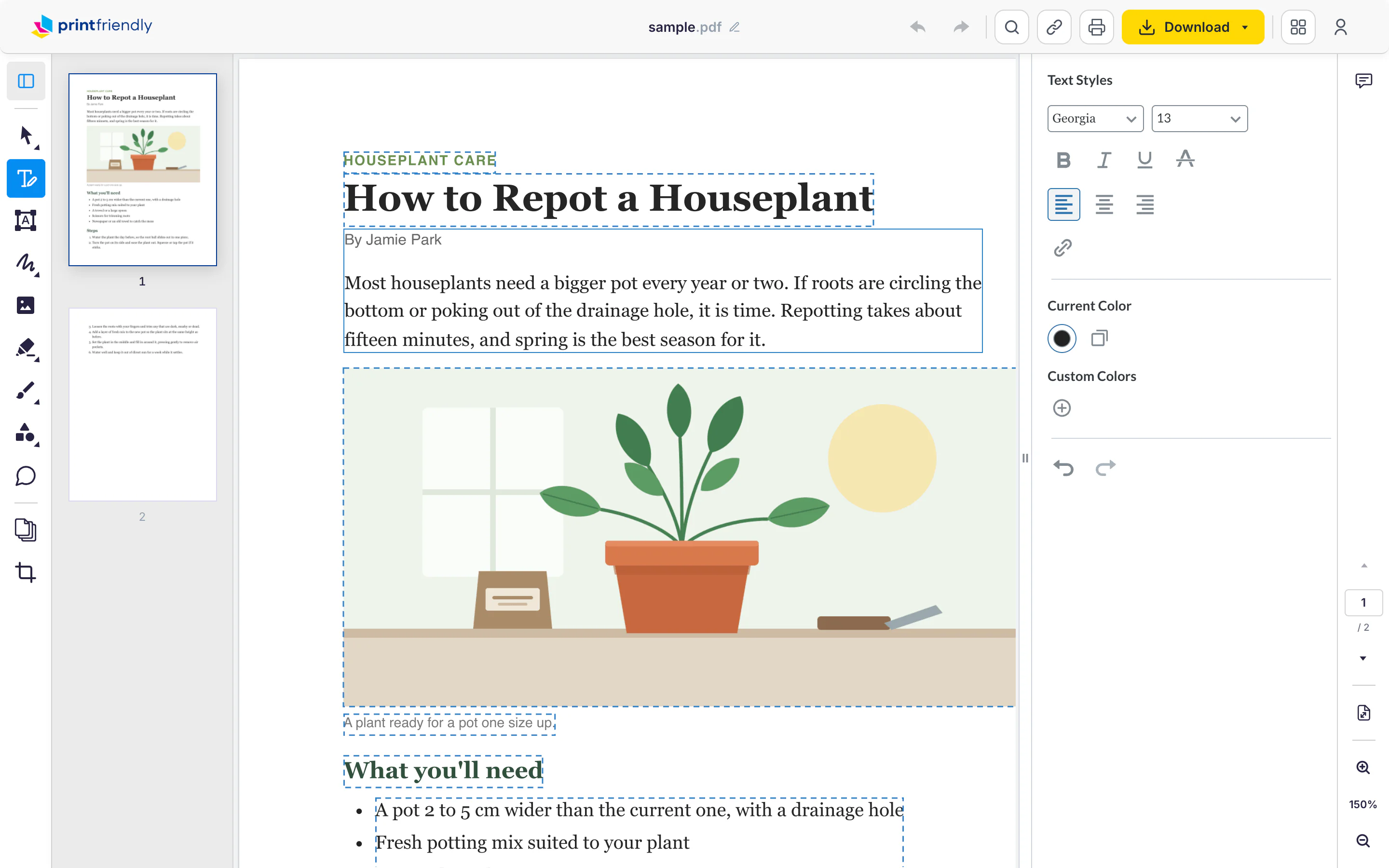
- Every block of text on the page gets a dashed blue outline: the title, each paragraph, captions, every item in a list. That's your map of what you can change.
- Double-click the block with the mistake. The outline turns solid and a cursor appears. (A single click only selects the block, so if you can't type, you clicked once.)
- Type the fix, then click anywhere outside the block. Your change stays, in the same font and size the paragraph had.
- Click Download at the top and choose PDF.
Each block is separate, so fixing one leaves the others where they were. Editing is free; downloading the finished file takes a free account.
If the same mistake shows up more than once (a name spelled wrong on every page, say), use the magnifying glass at the top to search the document first, so you know every place it appears. Then fix each one the same way.
Change the font, size or color
While a block is open, the Text Styles panel sits on the right. Select a word or a line, and the panel gives you a font menu, a size menu, bold, italic and underline, alignment, and a color picker under Current Color. So if you want to change the font in a PDF, or make one number bigger and red, this is where.
One honest thing about fonts. A plain fix keeps the paragraph's own font, so a corrected typo looks like it was always there. Restyling is different: if the PDF doesn't carry, say, the bold version of its font, the word you bolded can come out in a different typeface. Look over anything you restyled before you download.
Edit Text or Add Text?
They sit next to each other in the rail, and they do different jobs.
Add Text is the button just below Edit Text, a box with an A in it. It puts a new text box on top of the page, which is what you want for filling in a blank on a form, adding a date next to a signature line, or leaving a note in the margin. Edit Text changes the words that are already part of the page.
Why can't I edit the text in my PDF?
Usually because there isn't any text in it to edit. A scanned page, or a photo saved as a PDF, is a picture of words. It looks like text to you, but to the editor the whole page is one image, so Edit Text has nothing to outline. That covers more files than you'd think: anything that went through a scanner, a phone scanning app or a fax, plus screenshots saved as PDFs. A quick test: try to highlight a single word. If you can't, it's a scan.
For a scan, OCR PDF reads the words on each page and adds an invisible text layer behind the image. The page still looks exactly like the scan, but now you can search it and select and copy its text.
Edit Text also only works on PDFs. The editor opens Word files and images too, but on those the Edit Text button is grayed out, and hovering over it tells you it only works with PDF documents. If you have the Word file, edit that instead.
And it does best on PDFs with real, selectable text, the kind you get when something is exported from Word, Google Docs or a website. The editor's own tip says as much: results can vary on documents with complicated layouts and on older PDFs. If a block doesn't behave, that's usually why.
There's a short rundown of what the editor can do in What Each Tool Does.
When it's more than a typo
Edit Text is for fixes: a word, a number, a sentence. If you need to rewrite whole sections, or add enough that the pages would have to reflow, turn the file into a Word document with PDF to Word, make your changes there, and save it as a PDF again from Word. Or drop the finished document on our Word to PDF tool, which turns it back into a PDF for you.
Frequently Asked Questions
Why can't I edit text in a PDF?
Most often the PDF is a scan or a photo, which is a picture of words rather than text, so there's nothing to edit. If you can't highlight a single word in it, that's almost certainly why. Edit Text also only works on PDFs, not on Word files or images opened in the editor.
How do I edit text in a PDF without messing up the formatting?
Make your change inside the existing paragraph and leave the styling alone: a plain fix keeps the paragraph's font and size. Restyling a word can switch it to a different typeface, so check it before you download. For anything bigger than a fix, convert the PDF to Word and edit it there.
Can you edit text in a PDF for free?
Yes. Editing in PrintFriendly's Edit PDF is free. Downloading the finished file takes a free account.