Chrome DevTools full page screenshot vs an extension
Chrome hides a full page screenshot in its developer tools. Here's what it's good at, where it falls short, and when an extension is worth adding.
You want the whole page, not just the screen you can see. One person tells you Chrome can already do it in DevTools, another says to get an extension. Both are right: the Chrome DevTools full page screenshot is perfectly good for some jobs, and an extension wins on others. Here's which is which.
The built-in way: Chrome DevTools
Chrome's developer tools have a command that saves the whole page as one image, with nothing to install. Right-click the page and choose Inspect, press Ctrl+Shift+P (Cmd+Shift+P on a Mac) to open the command menu, type "screenshot" and pick Capture full size screenshot. A PNG lands in your Downloads folder. Our full page screenshot guide walks through it step by step, along with every other browser's way.
Two related tricks are worth knowing. DevTools can screenshot just one element: in the Elements panel, right-click it and choose Capture node screenshot. And its device toolbar lets you set an exact width or pick a phone, so you can capture the page the way a phone would show it.
Where DevTools is the better choice
- Nothing to install. No extension, no permissions, nothing that can see the pages you visit. It's already in Chrome.
- It works where extensions can't be added. Blocking extensions on a work computer doesn't remove DevTools. It's part of Chrome.
- One element only. A chart, a table, a single comment: Capture node screenshot gets exactly that piece, with nothing to crop afterwards.
- An exact width or a phone view. If you're filing a bug report or checking a design at 375 pixels wide, this is the job DevTools was built for.
- A one-off. If you need a full page screenshot twice a year, installing something for it is overkill.
Where DevTools falls short
- It's hidden. Most people never open developer tools, and when you do, the panel takes over half the window while you hunt for the command.
- A PNG and nothing else. No crop, no markup, no PDF, no printing, no searchable text. Whatever you want to do with the picture, you do somewhere else.
- Pages that scroll inside a panel. Chats, inboxes, dashboards and document editors often don't scroll the window: a box inside the page scrolls instead. To Chrome, that page is one screen tall, so the "full size" screenshot can come back one screen tall too. That's the usual answer when Capture full size screenshot seems not to work.
Other browsers' built-in tools
Firefox and Edge make this less of a hunt. Firefox's own screenshot tool, on the right-click menu as Take Screenshot, has a Save full page option, and Edge has a screenshot tool in its ... menu with a full page option too. Safari on a Mac only does it through Web Inspector, its developer tools. On iPhone and iPad, take a screenshot in Safari as usual, tap the preview and choose Full Page: you get a PDF of the whole page. The step by step guide has the details for each.
What a screenshot extension adds
Screenshot extensions work roughly the same way: you click a button in the toolbar (or press a shortcut), and the extension scrolls the page itself, piece by piece, then joins the pieces into one picture. Many give you more ways out than a single image file: a PDF, printing, copying to the clipboard, cropping or marking it up.
The costs are real, too:
- You're installing something that can see your pages. A screenshot extension needs that to do its job, so trust who makes it.
- Some cap how many screenshots you can take, or charge for the extras.
- Extensions don't run everywhere. Browser settings pages and the extension store are off limits to all of them.
- Sticky headers can repeat. A menu pinned to the top of the window can show up again on every screen of a stitched screenshot, in tools that don't handle it.
Where PrintFriendly fits
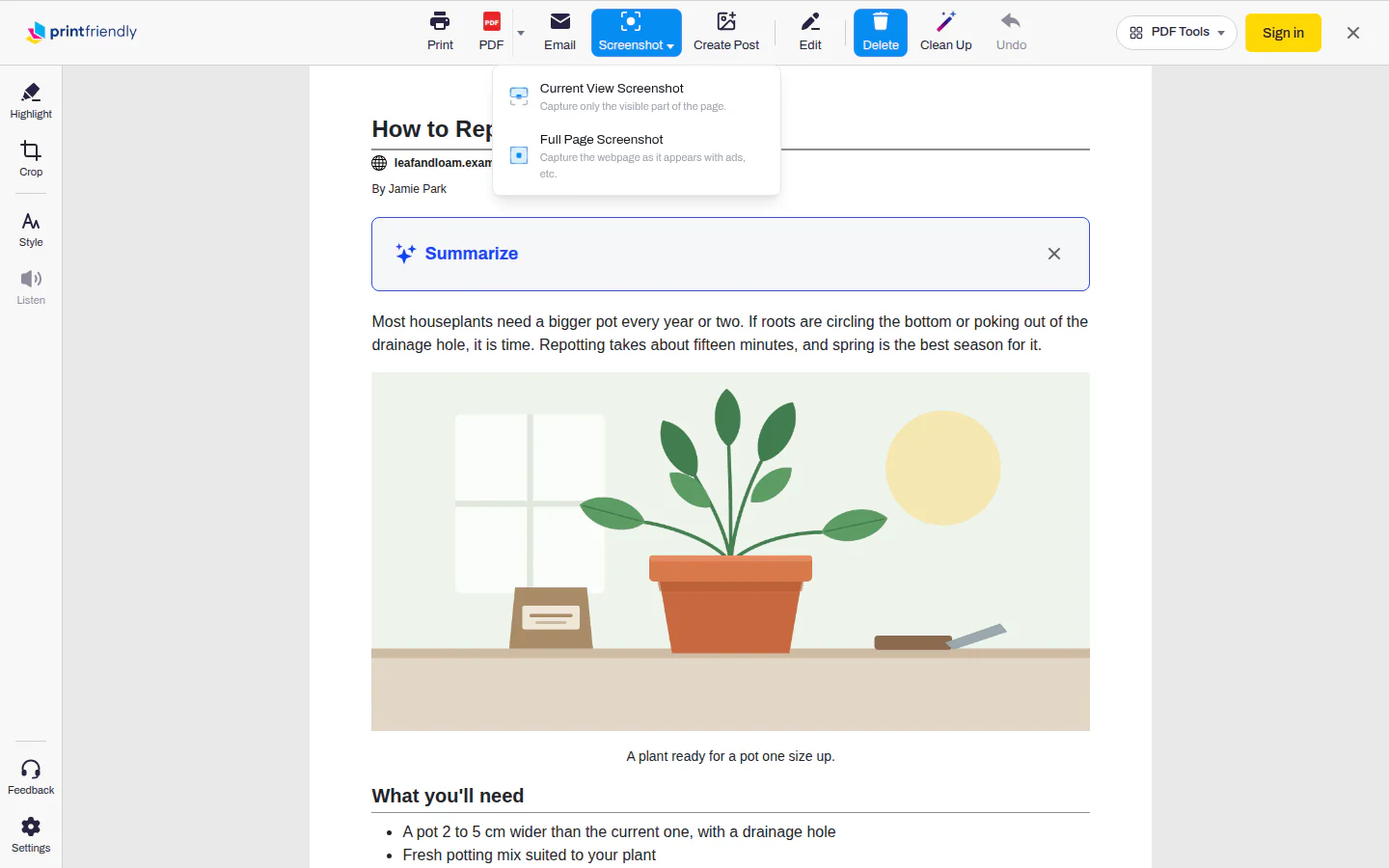
The PrintFriendly extension for Chrome has a Full Page Screenshot: click its icon in the toolbar and choose it, and it scrolls the page and opens the finished screenshot in a new tab. Screenshots are free.
What it does about the problems above:
- Pages that scroll inside a panel. It finds the panel that actually scrolls and scrolls that, so you get the whole chat or the whole list.
- Sticky headers. The header shows once, at the top, not on every screen.
- More than a PNG. The tab it opens has Crop and markup tools (arrows, boxes, text, highlights, Blur, Redact), then Print, PDF, Image and OCR along the top. OCR saves a PDF whose text you can search and select. Copy Image, under the arrow beside Image, puts it on your clipboard.
- A shortcut. Switch on Enable keyboard shortcuts in Settings and Ctrl+Shift+9 (Cmd+Shift+9 on a Mac) takes a full page screenshot.
It works in Chrome, Edge, Firefox and Safari, including Safari on iPhone and iPad. On iPhone and iPad you still get the save buttons, but not the crop and markup tools or the shortcut.
What it can't do: it has no one-element capture and no way to set a width or a phone view, so for those, DevTools is still the tool. And some sites still won't capture in full. When that happens, the extension tells you, and the Screenshots help page has what to try next.
Side by side
| Chrome DevTools | Other browsers' own tools | PrintFriendly | |
|---|---|---|---|
| Needs installing | No | No | Yes, the extension |
| Where it lives | Developer tools, command menu | Right-click or ... menu (Firefox, Edge), Web Inspector (Safari on a Mac), the screenshot preview (iPhone, iPad) | Toolbar icon or a shortcut |
| What you get | A PNG | An image, or a PDF on iPhone and iPad | Print, PDF, image, searchable PDF, clipboard |
| Crop or markup | No | Depends on the browser | Yes, on computers |
| Pages that scroll inside a panel | Can stop at one screen | Can stop at one screen | Scrolls the panel |
| One element only | Yes, Capture node screenshot | Depends on the browser | No, crop afterwards |
| Exact width or phone view | Yes, device toolbar | Depends on the browser | No |
| Computer that blocks extensions | Built in, nothing to add | Built in, nothing to add | Can't be installed |
| iPhone and iPad | No | Safari's Full Page, as a PDF | Yes, in Safari |
Which to use when
- A one-off on an ordinary page, or you can't install anything: Chrome DevTools, or Firefox's and Edge's own tools, which are easier to find.
- One element, or a phone-width view for a bug report or a design review: DevTools.
- A chat, an inbox or a dashboard: an extension that scrolls the panel, like PrintFriendly.
- You want a PDF, a printout, markup or searchable text, or you do this often: an extension like PrintFriendly.
- You want the article's text as a clean PDF, not a picture of the page: neither. Save the webpage as a PDF instead.
Frequently Asked Questions
Can I take a full page screenshot in Chrome without an extension?
Yes. Open Developer Tools, open its command menu with Ctrl+Shift+P (Cmd+Shift+P on a Mac), type "screenshot" and choose Capture full size screenshot. You get a PNG of the whole page.
Why does Chrome's "Capture full size screenshot" only capture part of the page?
Usually because the page scrolls inside a panel, not the whole window, the way chats, inboxes and dashboards do. As far as Chrome is concerned the page is one screen tall, so that's what you get. An extension that scrolls the panel itself gets the rest.
Is it safe to use a full page screenshot extension?
Any screenshot extension has to be able to see the pages you capture, so pick one from a maker you trust. PrintFriendly captures only the tab you start from, and it doesn't upload your screenshot anywhere unless you save it to an online account you've connected.
Can I save a full page screenshot as a PDF instead of a PNG?
Not from Chrome's developer tools, which only save a PNG. Safari on iPhone and iPad saves a full page as a PDF, and PrintFriendly's screenshot tab has a PDF button, plus OCR for a PDF you can search.
Sources
- Get started with viewing and changing the DOM | Chrome DevTools, Google Chrome for Developers. Chrome DevTools can capture a screenshot of a single element with the Capture node screenshot command.
- Take screenshots in Firefox - Mozilla Support, Mozilla. Firefox's built-in screenshot tool can save the full page.