How to save a webpage as a PDF in any browser (and on your phone)
Every browser can save a page as a PDF. Here's where the option hides in each one, what to do when it comes out cut off, and how to skip the ads.
You found a page worth keeping: a receipt, a recipe, an article you want to read on the train. Here's how to save a webpage as a PDF in every major browser, because they all can, they just hide the option in slightly different places.
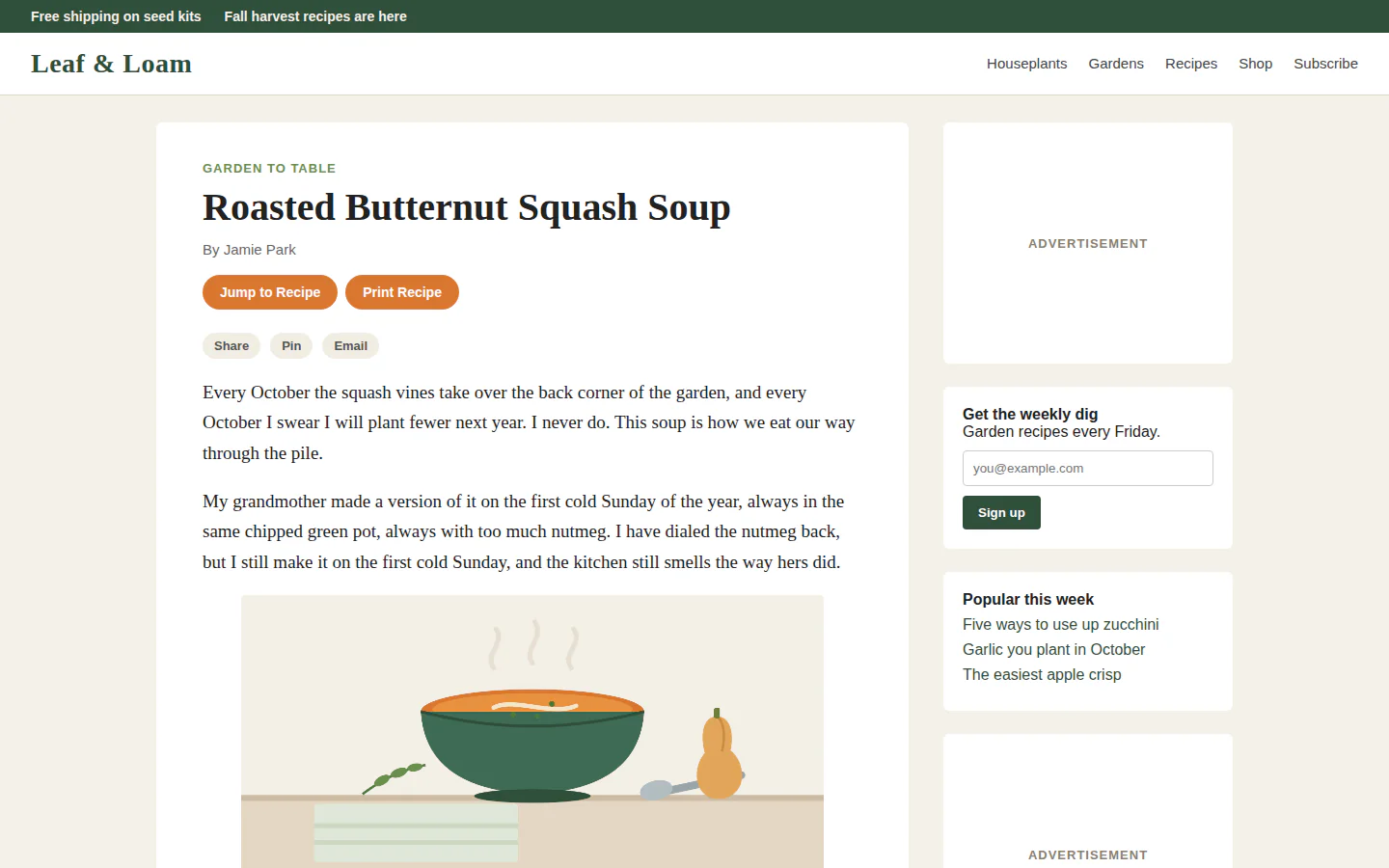
One heads-up before you start. The built-in way saves everything on the page, ads, menus and cookie banners included. If you only want the article, skip to the last two sections.
The shortcut that works almost everywhere
On a computer, press Ctrl+P (Command+P on a Mac). That opens the print dialog. Instead of a printer, pick the PDF option, then save. That's it in every desktop browser. The only thing that changes is what the PDF option is called and where it sits, which is what the sections below are for.
How to save a webpage as a PDF in Chrome
- Press Ctrl+P (Command+P on a Mac), or open the ⋮ menu and choose Print.
- Next to Destination, choose Save as PDF.
- Click Save and pick where the file goes.
More settings has two switches worth knowing: Headers and footers (the date, title and web address printed at the edges) and Background graphics (turn it on if colors or images are missing).
If you can't find a way to save, the Destination is still set to your printer. That's the whole answer to "why won't Chrome save this as a PDF" most of the time.
Microsoft Edge
Press Ctrl+P, set Printer to Save as PDF, then click Save.
On Windows you'll also see Microsoft Print to PDF in the printer list. It's built into Windows and does the same job, so either one works.
Firefox
Press Ctrl+P (Command+P on a Mac), set Destination to Save to PDF, and click Save. Firefox calls it "Save to" where Chrome says "Save as", so don't go looking for the Chrome wording.
How to save a webpage as a PDF on a Mac (Safari)
Safari gives you two ways:
- File > Export as PDF, then choose a name and a folder.
- File > Print, then open the PDF menu at the bottom of the print dialog and choose Save as PDF.
The print route is the one to use when you want to change the paper size or orientation first.
How to save a webpage as a PDF on iPhone and iPad
The easiest way on an iPhone or iPad is a screenshot, oddly enough:
- Open the page in Safari and take a screenshot as you normally would.
- Tap the preview that pops up in the corner.
- Choose Full Page at the top.
- Tap Done and save the PDF to Files.
This keeps a long page in one piece instead of splitting it into printer-sized sheets, which is often what you want on a phone anyway.
Android
In Chrome on Android, open the ⋮ menu, tap Share, then Print. At the top, change the printer to Save as PDF and tap the download button. You'll be asked where to save it.
When the PDF comes out cut off or messy
The print dialog has a few fixes. Try them in this order:
- Check the preview before you save. It shows exactly what you'll get.
- Switch to Landscape if wide tables or images are getting chopped at the side.
- Lower the scale (in Chrome it's under More settings) so more fits across the page.
- Turn on background graphics if pictures or colored boxes are missing.
- Scroll to the bottom first on pages that load pictures as you scroll. Otherwise the pictures you never scrolled past can come out as blank space.
Then there's the part no setting fixes. Your browser saves everything on the page: the ads, the cookie banner, the menu, the sidebar full of "popular this week" links, and the empty space they leave behind. Long pages break wherever the paper runs out, sometimes right through a picture. For a simple page that's fine. For most of the internet, it's twelve pages for three pages of article.
Save webpage as PDF without the ads
This is the bit we built PrintFriendly for. Install the PrintFriendly extension for Chrome (it's also on Edge, Firefox and Safari, including Safari on iPhone and iPad), then on the page you're reading:
- Click the PrintFriendly button in your browser's toolbar.
- Choose PrintFriendly View. The article opens on top of the page with the ads, menus and sidebar already gone.
- Click PDF along the top to save it.
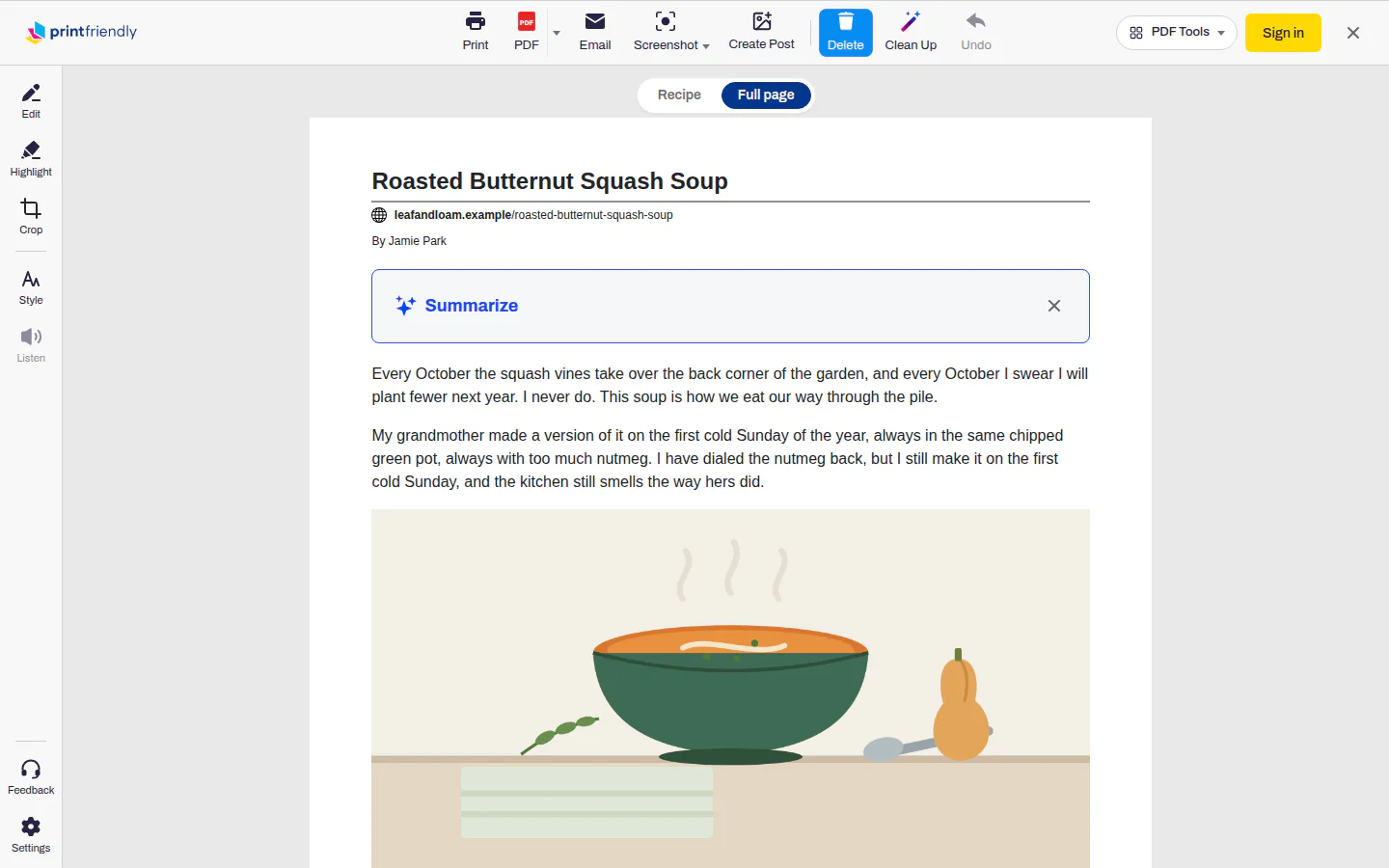
Anything else you don't want, click it first. Delete is already on when PrintFriendly View opens, and one click removes one block, like a caption or a paragraph. Undo puts it back if you click one too many. Because it works on the page already open in your browser, it handles pages you're signed into, too.
No extension, or on a computer where you can't add one? Paste the page's address into the Print or PDF a web page box on our home page, press Go, then click PDF. You get the same clean article. Our post on converting a web page to PDF walks through both ways in more detail and helps you pick between them. On Android, the home page in your phone's browser is the way to go.
If it has to look exactly like the site
Sometimes you don't want the tidy article. You want the page as it really looks, colors, layout and all, from the header down to the footer. That's not a print job, it's a screenshot. The extension's Full Page Screenshot scrolls the whole page for you and opens it as one tall image, with a PDF button to save it. Our guide to taking a full page screenshot covers it, along with each browser's own way to do it.
Frequently Asked Questions
Why can't I save a webpage as a PDF in Chrome?
Usually the print dialog still has a printer picked. Open the Destination list and choose Save as PDF, and the Print button turns into Save.
How do I save a webpage as a PDF without it getting cut off?
Check the preview first, then try Landscape and a smaller scale in the print dialog. If the page is mostly ads and sidebars, PrintFriendly View lays out just the article for paper, so there's less to cut off.
How do I save a webpage as a PDF on my iPhone?
Take a screenshot in Safari, tap the preview in the corner and choose Full Page. That gives you the whole page as a PDF you can save to Files.
How do I save an entire webpage as a PDF?
For the whole article as a readable document, use your browser's Save as PDF or PrintFriendly View. For the page exactly as it looks on screen, header to footer, take a full page screenshot and save that as a PDF.