How to convert a web page to PDF (without the ads)
Paste a link on our home page, or use the extension on the page you're reading, and you get a clean PDF of the article. Here's which way to use when.
You found a page worth keeping: an article to read on the plane, instructions you'll need again, something to send to a friend who won't click links. So you try to convert a web page to PDF, and you get twelve pages of cookie banners, menus, ads and half a sidebar, with the bit you wanted split across pages four and five.
There are three easy ways to turn a website into a PDF. Two of them are ours: paste the link on our home page, or click the extension on the page you're reading. Both give you the article without the clutter. The third is your browser's own Save as PDF, which is fine for simple pages and copies everything for the rest.
Paste the link on our home page (convert a link to PDF)
If you have the address, you don't need to install anything. This is what people mean by "URL to PDF".
- Copy the page's address.
- Paste it into the Print or PDF a web page box on our home page and press Go.
- The article opens without the site's ads, menus and pop-ups. Click PDF along the top.
- Pick Letter or A4, click Generate PDF, then Download PDF.
Saving the PDF this way doesn't need an account. Print sits right beside PDF if you'd rather have paper, and Email sends the article to someone (that one asks you to sign in to a free account first).
It works in any browser, on a Mac, a PC, a Chromebook or a phone. That makes it the one to use for a link someone sent you, a work or library computer where you can't add anything, or your phone.
The one limit: it can only open pages anyone can open. Your bank statement, a message in your webmail, a course page you're signed into or an article behind a paywall won't come through. For those, use the extension.
Use the extension on the page you're reading
Already on the page? Skip the copying and pasting:
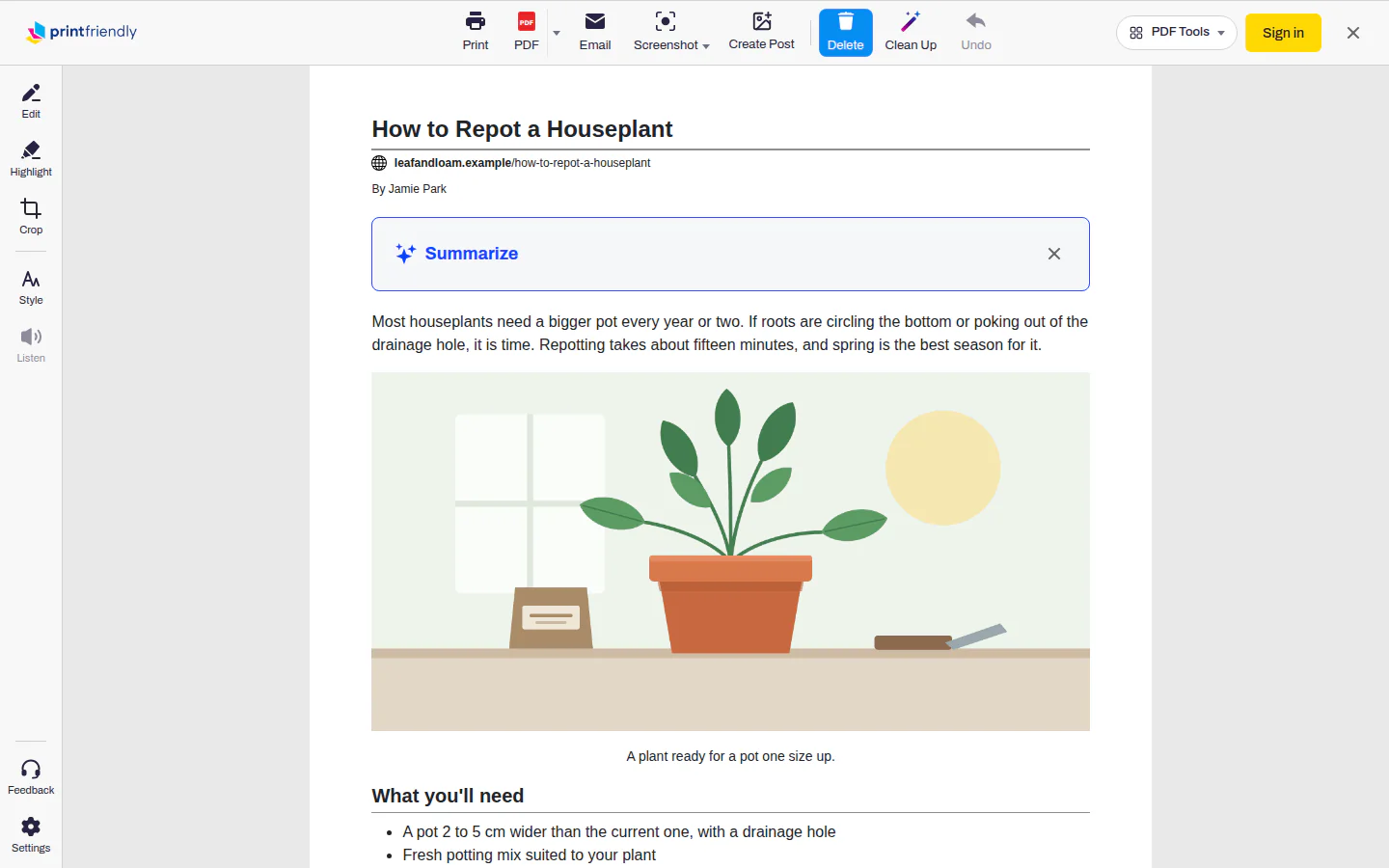
- Click the PrintFriendly button in your browser's toolbar.
- Choose PrintFriendly View. The clean article opens right on top of the page.
- Click PDF along the top to save it, or Print to send it to a printer.
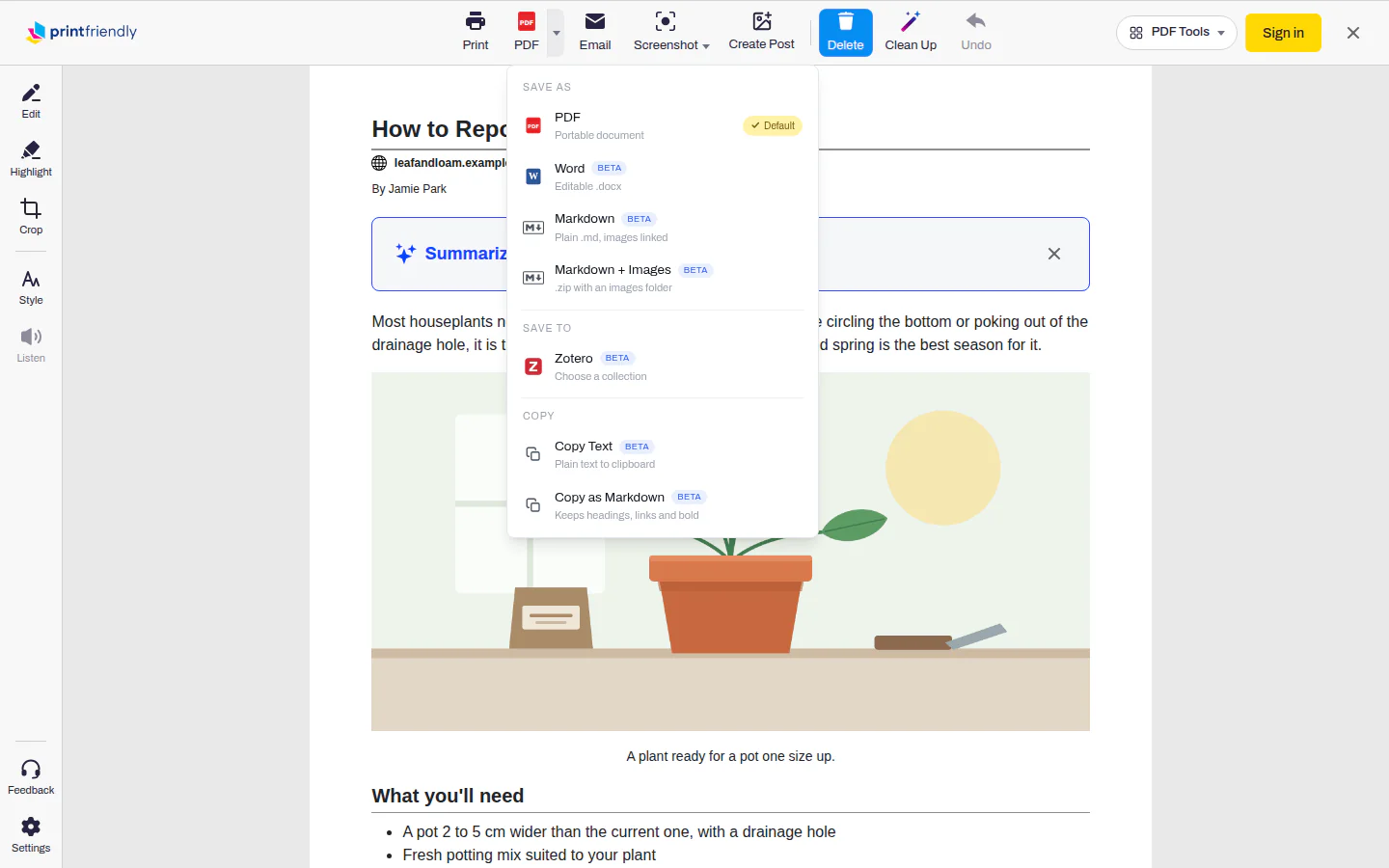
The small arrow beside PDF has other ways to keep the page, like Word if you'd rather have a document you can edit.
Because the extension works on the page already open in your browser, it handles the pages a link can't: anything you're signed into. If you can read it, you can save it.
It's available for Chrome, Edge, Firefox and Safari, including Safari on iPhone and iPad.
Clean it up before you save
Most pages come out clean on their own. When something slips through, or you only want part of the page, fix it before you click PDF:
- Delete anything. Delete is already on when the page opens, on our website and in the extension. Click a block and it's gone: a comments section, a caption, a stray ad, a paragraph you don't need. One click removes one block, so a long section can take a few.
- Undo puts back whatever you deleted last.
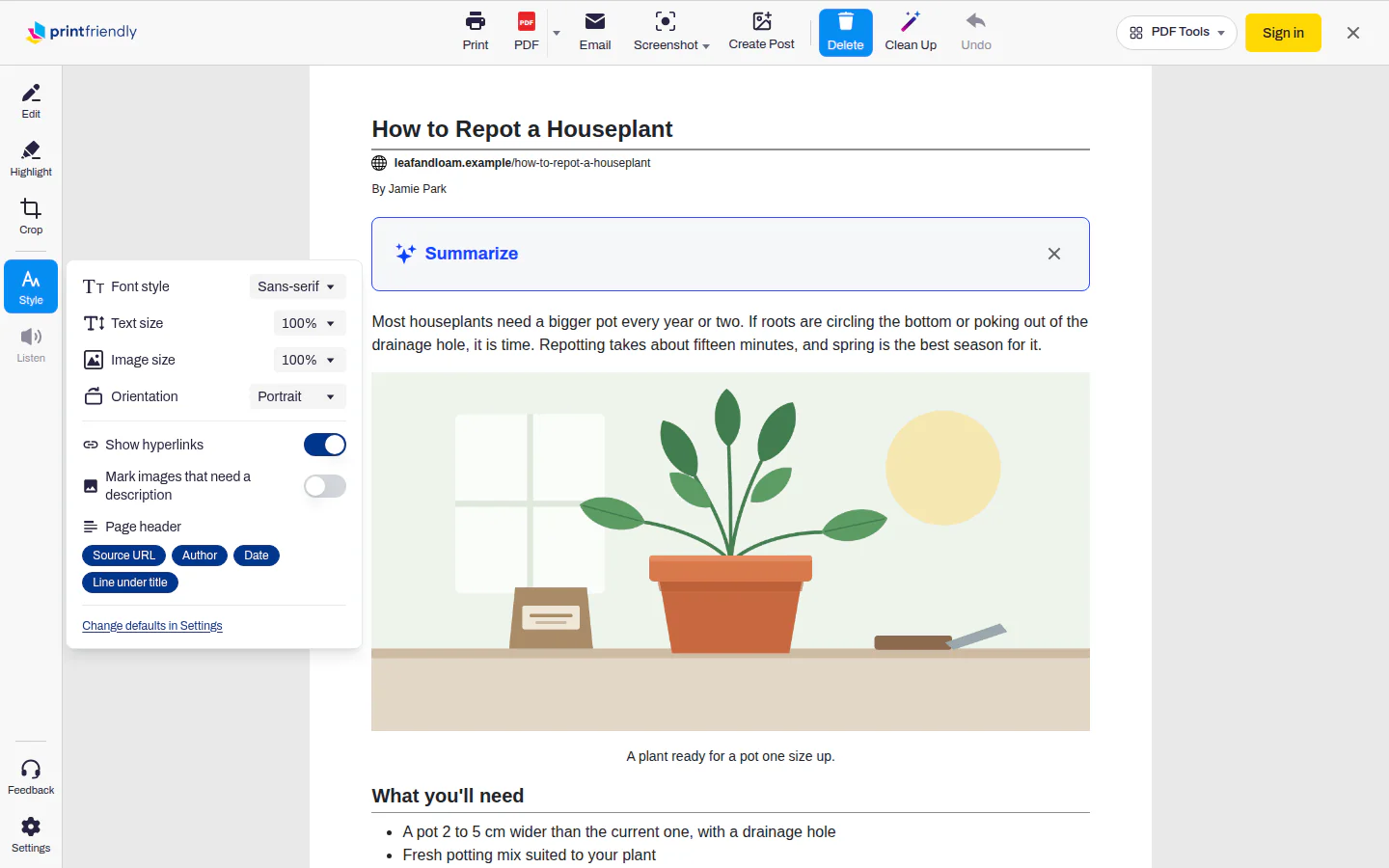
- Style has Text size, to make the type bigger or smaller, and Image size, to shrink every picture to 75%, 50% or 25%. Pick 0% to drop the pictures altogether, which can save a lot of pages.
The extension can do more than this, like editing the text, highlighting and cropping. It's all on the Help Center's extension features page.
Your browser's own Save as PDF
Your browser can save a web page as a PDF without anything extra. Open the print dialog (Ctrl+P, or Command+P on a Mac) and pick the PDF option instead of a printer. In Chrome and Edge it's Save as PDF under Destination; other browsers word it a little differently.
It's built in and free, and for a simple page with little on it besides the text, it's perfectly good. The catch is that it keeps everything on the page: ads, menus, banners, the sidebar, and the empty space they leave behind. Long pages can also break awkwardly, with a picture or a table cut in half across two sheets. That's usually where the "why is my PDF twelve pages long" moment comes from.
Want the whole page exactly as it looks?
PrintFriendly gives you the article as a readable document, laid out for paper. It doesn't copy the site's design: the colors, the layout, the menus are gone on purpose.
Sometimes you want the opposite, the page as it appears on screen, header to footer. That's a job for a screenshot. The extension's Full Page Screenshot scrolls the page for you and gives you one tall image, which you can then save as a PDF. Our post on taking a full page screenshot walks through it.
Which one to use
- Someone sent you a link, or you're on a phone or a borrowed computer: paste it on our home page.
- You're on the page already, especially one you're signed into: use the extension.
- It has to look exactly like the site: take a full page screenshot and save it as a PDF.
- You've got nothing but your browser and the page is simple: Print, then Save as PDF.
Frequently Asked Questions
How do I convert an entire web page to PDF?
It depends what you mean by entire. For the whole article as a readable document, paste the link on the PrintFriendly home page or use the extension, then click PDF. For the page exactly as it looks on screen, design and all, take a full page screenshot with the extension and save that as a PDF.
Can I convert a web page to PDF on my phone?
Yes. Open printfriendly.com in your phone's browser, paste the page's address into the box and tap Go, then tap PDF. There's nothing to install.
Why does my web page PDF have ads and blank pages in it?
Your browser's Save as PDF copies everything on the page, so the ads, menus, banners and the empty space around them all come along, and long pages can break in odd places. PrintFriendly leaves those out and lays the article out for paper.
Can I convert a page that needs a login to PDF?
Not from a link, because our home page can only open pages anyone can open. Use the PrintFriendly extension instead. It works on the page already open in your browser, so if you can read it, you can save it.