Basic Computer Terms, Explained in Plain English
The short list of computer words you'll actually run into, grouped by what you're doing, with a real example for each one.
Nobody hands you a dictionary with your first laptop, but the words come at you anyway: RAM, cloud, file extension, phishing. Most lists of basic computer terms online are either decades old (modems on phone lines, floppy disks) or thousands of entries long. This one is the short set you'll actually meet, grouped by what you're doing, each with an everyday example. It's long enough that you may want it on paper, so there's a note at the end on printing it or saving it as a PDF.
Hardware vs software
Hardware is the part of a computer you can touch: the screen, the keyboard, the chips inside, the printer on your desk. Software is the set of instructions that runs on that hardware and tells it what to do: Windows, your web browser, a photo app. A new laptop is hardware. The apps you install on it are software.
Every computer, from a phone to a desktop, does four things. It takes input (you type, tap, talk or point a camera at something), processes it (the processor does the work), stores it (on a drive, so it's still there tomorrow) and gives you output (on the screen, through the speakers or out of the printer). Most of the terms below fit into one of those four.
The parts of a computer
CPU (processor): The chip that does the actual thinking, following software's instructions one step after another. A faster processor means apps open and respond more quickly.
RAM (memory): The computer's short-term workspace, holding whatever you have open right now. It empties when you shut down. More RAM lets you keep more tabs and apps open without everything slowing down.
Storage: Where things stay when the power is off: your files, photos and apps. Here's the mix-up almost everyone makes: "memory" (RAM) is how much you can work on at once, and "storage" is how much you can keep.
Hard drive (HDD) vs SSD: Both are storage. A hard drive keeps data on a spinning disk. A solid-state drive (SSD) has no moving parts, so it's faster and quieter. Most new laptops use an SSD.
Operating system (OS): The main software that runs the computer and everything on it. Windows, macOS and ChromeOS run on computers; iOS and Android run on phones.
Peripheral: Anything you plug into a computer rather than something built in: a mouse, a printer, a webcam, an external drive.
Port: The socket you plug things into. USB is the familiar rectangular one, USB-C is the smaller oval one that charges most phones and laptops now, and HDMI connects a computer to a TV or monitor.
Driver: A small piece of software that lets the computer talk to a specific piece of hardware. When a new printer won't print, a missing or outdated driver is a common reason.
Monitor (display): The screen, built into a laptop and usually separate on a desktop.
Storage sizes: bits, bytes, KB, MB, GB, TB
A bit is the smallest piece of computer data, a single 1 or 0. A byte is 8 bits, about enough to store one letter of text. Everything else is bytes in bigger bundles:
| Unit | Roughly | Feels like |
|---|---|---|
| Kilobyte (KB) | 1,000 bytes | A short email is a few KB |
| Megabyte (MB) | 1,000 KB | A phone photo is a few MB |
| Gigabyte (GB) | 1,000 MB | An HD movie download is a few GB |
| Terabyte (TB) | 1,000 GB | Hundreds of thousands of phone photos |
So why does a brand-new 1 TB drive show up in Windows as about 931 GB? Drive makers count in 1,000s, so 1 TB means a trillion bytes. Windows counts in 1,024s, so in its math a trillion bytes comes out to about 931 GB. Nothing is missing. Macs count in 1,000s like the box does, which is why the same drive looks bigger plugged into a Mac.
Files, folders and file types
File: One thing you've saved: a photo, a letter, a spreadsheet, a song.
Folder (directory): A container for files, and for other folders. The difference between a file and a folder is that a file is the thing itself and a folder is the drawer you put it in. "Directory" is the older word for the same idea.
File extension: The letters after the dot in a file's name, like .docx, .jpg or .pdf. They tell the computer which app should open the file. Windows and Macs often hide them: in Windows File Explorer, turn on File name extensions from the View menu; on a Mac, it's in Finder's settings under Advanced.
File format: The way a file's contents are arranged, which the extension usually names. A .jpg and a .png are both pictures, just in different formats. There's a full rundown of document formats in our document conversion glossary.
File size: How much storage a file takes up, in KB, MB or GB. It matters most when an email or upload form has a limit.
Download vs upload: Downloading copies something from the internet onto your device. Uploading sends something from your device to the internet, like attaching a photo to an email.
Downloads folder: Where your browser puts files you download, unless you tell it otherwise. If you can't find something you just downloaded, look here first.
Cloud storage: Keeping files on a company's servers over the internet instead of only on your device. Google Drive, iCloud, OneDrive and Dropbox are examples.
Backup: A second copy of your files somewhere else (an external drive or the cloud), so losing your laptop doesn't mean losing your photos.
Sync: Keeping the same files up to date on more than one device. Edit a document on your laptop and the synced copy on your phone changes too.
Words for making and sharing documents
Word processor: An app for writing and formatting text documents. Microsoft Word, Google Docs and Apple Pages are the common ones.
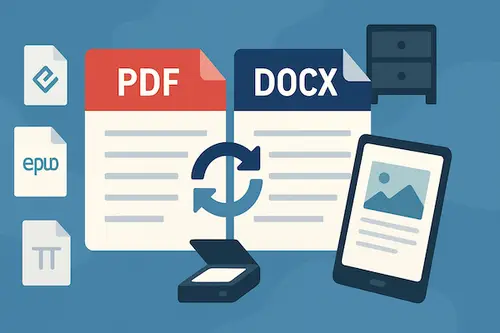
PDF: Short for Portable Document Format, a file type Adobe created so a document looks the same on any device. That's why contracts, forms and receipts so often arrive as PDFs: the layout doesn't shift depending on who opens it.
Convert: Changing a file from one format to another, like turning a Word document into a PDF before you send it, or a PDF back into Word so you can edit it.
Print preview: The view that shows how a page will look on paper before you print it, so you catch the extra blank page or the cut-off table first.
Hard copy: A paper copy, as opposed to the file on your screen.
Scan: Turning a paper page into a file, usually a picture or a PDF, with a scanner or your phone's camera.
OCR (optical character recognition): Turning a picture of text into real text you can search, select and copy. A scanned page without OCR is just a photo of words.
Compress: Making a file smaller so it's quicker to send or fits under an email limit. If a PDF is too big to attach, drop it on Compress PDF.
Resolution (DPI): How much detail an image or printout holds, often measured in dots per inch. Higher DPI looks sharper and makes bigger files.
Font: The style of the letters, like Arial or Times New Roman. A document can look completely different in another font, which is one reason people send PDFs.
Screenshot: A picture of what's on your screen. Press Windows key + Shift + S on Windows, or Shift + Command + 4 on a Mac, to grab part of it.
Internet and browser terms
Internet vs World Wide Web: The internet is the worldwide network connecting computers. The web is one thing that runs on it: the websites you visit in a browser. Email and video calls use the internet too, without being "the web".
Wi-Fi vs internet connection: Wi-Fi is the wireless link between your device and your router. The internet connection is what your router has to the outside world. You can have full Wi-Fi bars and no internet if the connection itself is down.
Modem and router: The modem connects your home to your internet provider, over cable, fiber or a phone company's line. The router shares that connection with your devices, usually over Wi-Fi. Many providers hand you one box that does both.
Bandwidth: How much data a connection can move per second, usually measured in megabits per second (Mbps). Watch the small b: a megabit is an eighth of a megabyte, so a 100 Mbps connection downloads about 12.5 megabytes each second.
Browser: The app you use to visit websites: Chrome, Safari, Edge or Firefox.
URL: A web page's address, like the one at the top of your browser starting with https://.
HTTPS and the padlock: HTTPS means the connection between your browser and the site is encrypted, so others on the network can't read what you send. The padlock says the connection is private. It doesn't say the site itself is trustworthy.
Search engine: A site that finds pages for you, like Google or Bing.
Cookie: A small file a website saves in your browser to remember you, like keeping you signed in or remembering what's in your cart.
Cache: Copies of pages and pictures your browser keeps so sites load faster next time. (Processors have a cache too, a different thing with the same name.) Clearing it often fixes a page that looks broken.
Browser extension: A small add-on that gives your browser a new skill, like blocking ads or printing a page cleanly.
Staying safe
Malware: Any software built to do harm: steal passwords, spy on you or lock up your files.
Virus: One kind of malware that spreads by copying itself into other files. People often use "virus" for all malware.
Phishing: A fake email, text or site pretending to be someone you trust so you'll hand over a password. If a message asks you to sign in through a link, go to the site yourself instead.
Spam: Junk email or messages you didn't ask for. Don't reply and don't click; just mark it as spam.
Password manager: An app that creates and remembers a different strong password for every site, so you only have to remember one.
Two-factor authentication (2FA): A second step after your password, like a code texted to your phone. Someone who steals your password still can't get in without it.
Firewall: A gatekeeper that blocks unwanted connections to your computer or network. Windows and macOS both have one built in.
Update (patch): A fix from the maker of your software. Many fix security holes, so installing them promptly is one of the easiest ways to stay safe.
Common acronyms, spelled out
- CPU: central processing unit
- RAM: random access memory
- ROM: read-only memory
- SSD: solid-state drive
- HDD: hard disk drive
- OS: operating system
- USB: Universal Serial Bus
- HDMI: High-Definition Multimedia Interface
- URL: uniform resource locator
- HTTP / HTTPS: Hypertext Transfer Protocol (Secure)
- HTML: HyperText Markup Language, the code web pages are written in
- PDF: Portable Document Format
- OCR: optical character recognition
- DPI: dots per inch
- GB: gigabyte
- GUI: graphical user interface, the windows, icons and menus you click
- ISP: internet service provider
- VPN: virtual private network
- Wi-Fi: not short for anything. It's a brand name, picked because it was catchier than the technical name.
Print or save this glossary
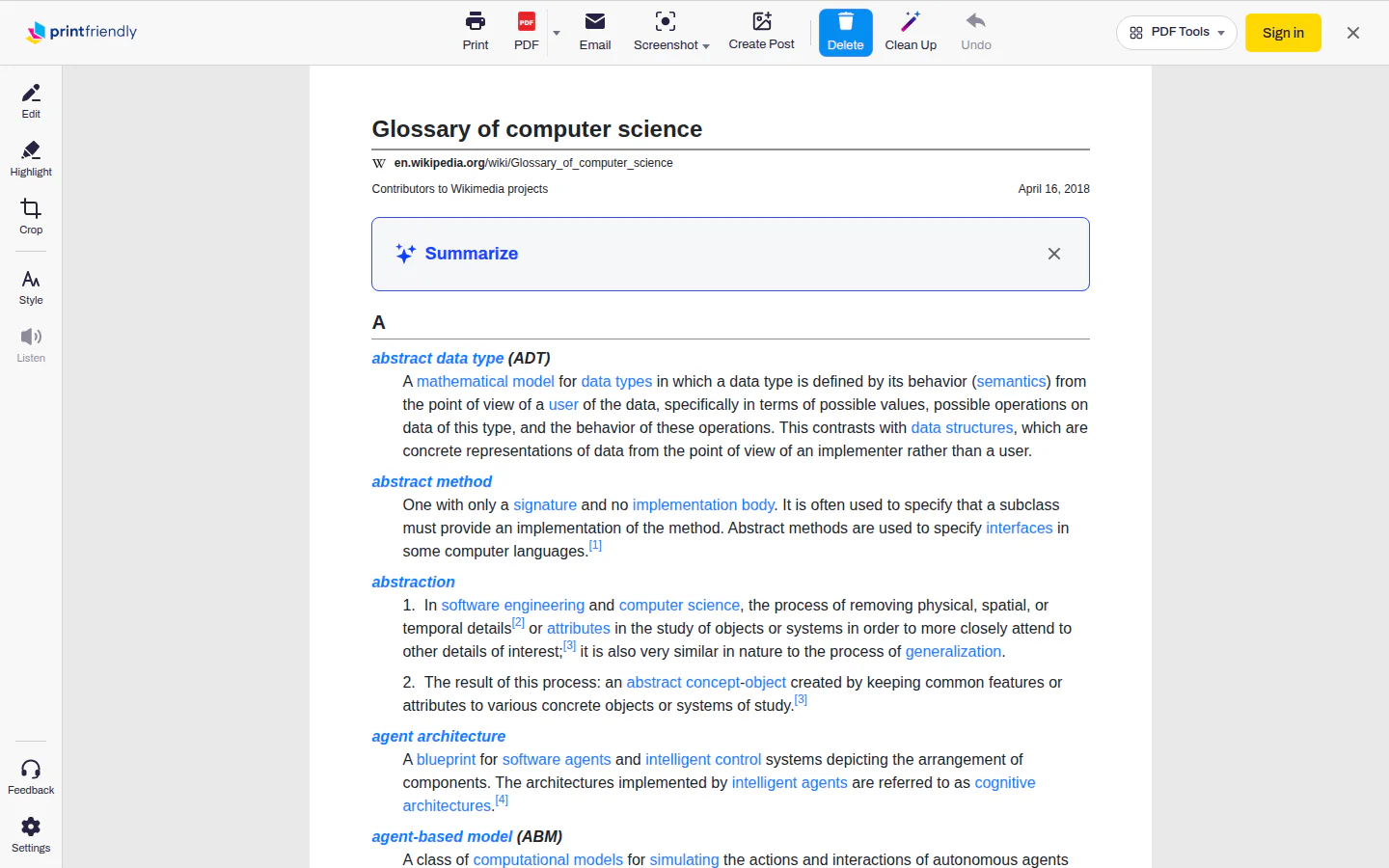
Want these basic computer terms on paper, or as a PDF to keep? Open this page with the PrintFriendly extension for Chrome: click the PrintFriendly button in your toolbar, choose PrintFriendly View, then click Print or PDF. Clicking any paragraph removes it first, so you can keep just the sections you need.
Frequently Asked Questions
What's the difference between hardware and software?
Hardware is the physical stuff you can touch, like the screen, keyboard and printer. Software is the set of instructions that runs on it, like Windows, a web browser or a word processor.
What's the difference between a file and a folder?
A file is one thing you've saved, like a photo, a letter or a spreadsheet. A folder is a container that holds files (and other folders) so you can keep them organized.
What does PDF stand for?
Portable Document Format. Adobe created it so a document would look the same on any device, which is why forms, contracts and receipts so often arrive as PDFs.
Why does my new hard drive show less space than advertised?
Drive makers count a gigabyte as 1,000 megabytes, while Windows counts it as 1,024. So a 1 TB drive shows up in Windows as about 931 GB. Nothing is missing, it's just two ways of counting.