Print without the URL, author or date
Handing out a recipe or a worksheet? Leave the web address, byline, date and page number off. One page at a time, or every page.
A printout for a class, a recipe card for the fridge, a PDF for a client: sometimes you don't want a web address, a byline and a date sitting under the title, or a "1/1" in the corner of every page. PrintFriendly View now lets you switch each of them off.
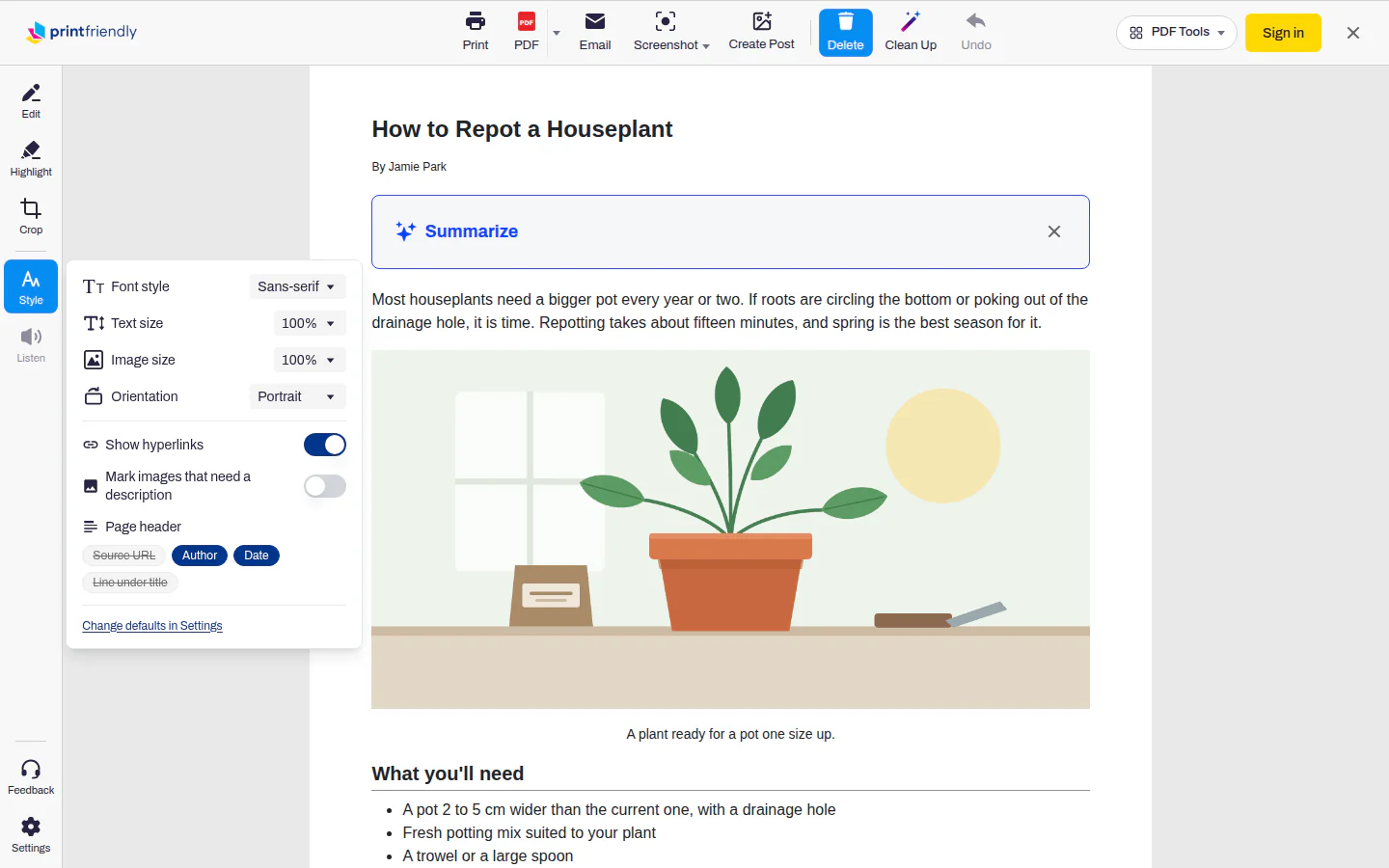
Just this page
Open an article in PrintFriendly View and click Style. Near the bottom there's a Page header row with four buttons: Source URL, Author, Date and Line under title. Click one to hide it, and click again to bring it back. A hidden one turns grey and gets crossed out.
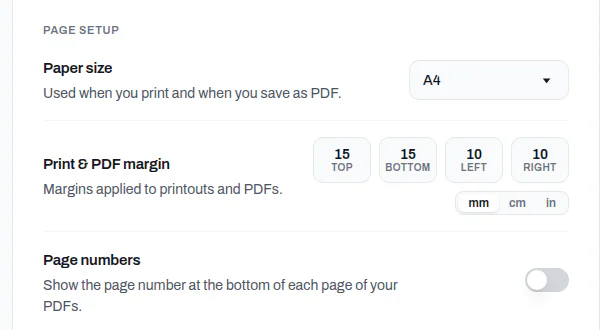
Under it is a Page numbers switch. Turn it off and the PDF you save has no page number at the bottom of each page.
These only change the page you're on, the same way Show hyperlinks does in that menu. The next article goes back to your usual setup.
Every page
If you never want the address on your printouts, set it once. Click Change defaults in Settings at the bottom of the Style menu, and Settings opens on the PrintFriendly View tab. Under Page header are the same four items as switches. Whatever you turn off there is off on every page you open.
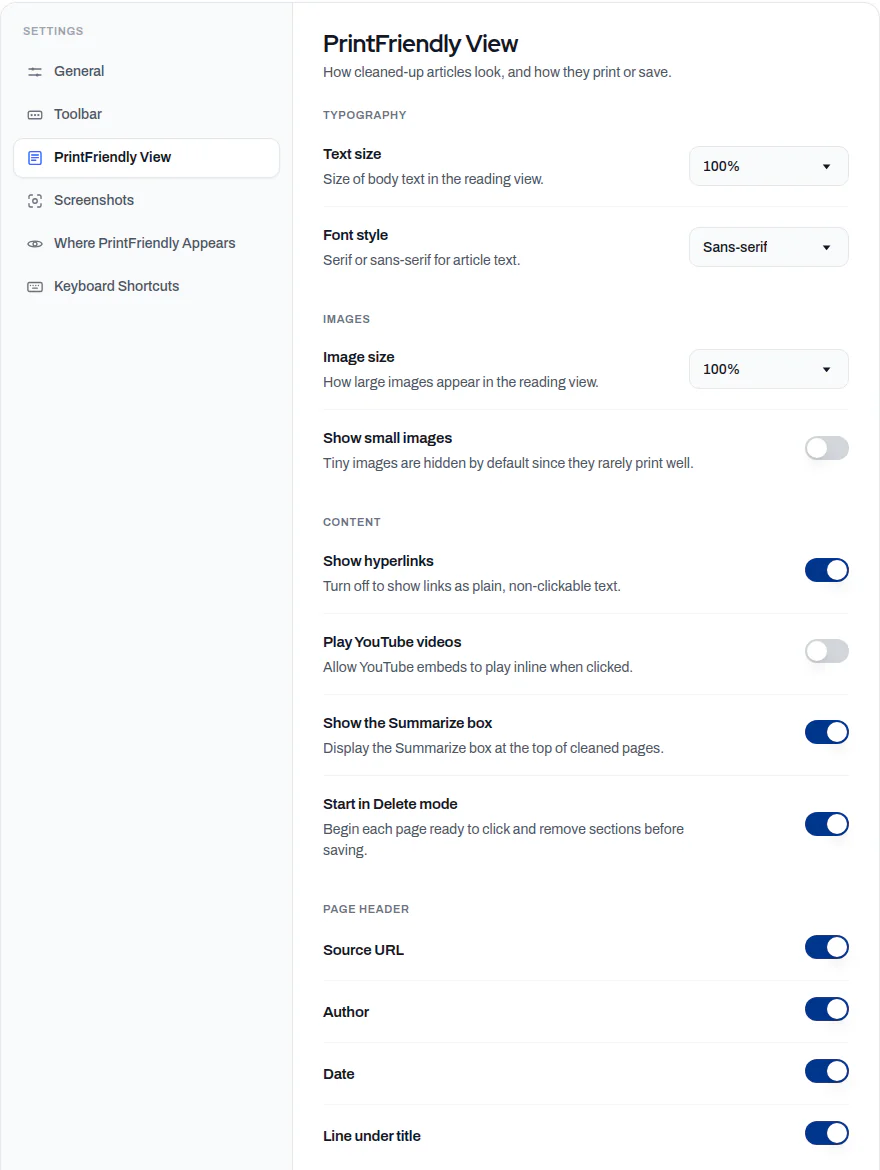
Page numbers are further down that tab, under Page Setup.
It stays off when you save
What you hide in the page header stays hidden in the printout and the PDF. It's left out when you copy the text, save Markdown or download a Word file, too.
The date and address in the margins
Seeing a date, page title, web address or page number in the very top and bottom corners of a printout? That's your browser, not the article, and the Page numbers switch doesn't touch it. In Chrome's print dialog, open More settings and untick Headers and footers.
Where it works
It's in the PrintFriendly extension for Chrome, Edge and Firefox. If you're tidying up a page before you print, Clean Up clears the clutter an article leaves behind.