Sync your PrintFriendly settings across browsers
Your paper size, text size and the rest of the extension's settings now come with you to every browser and computer where you're signed in to PrintFriendly.
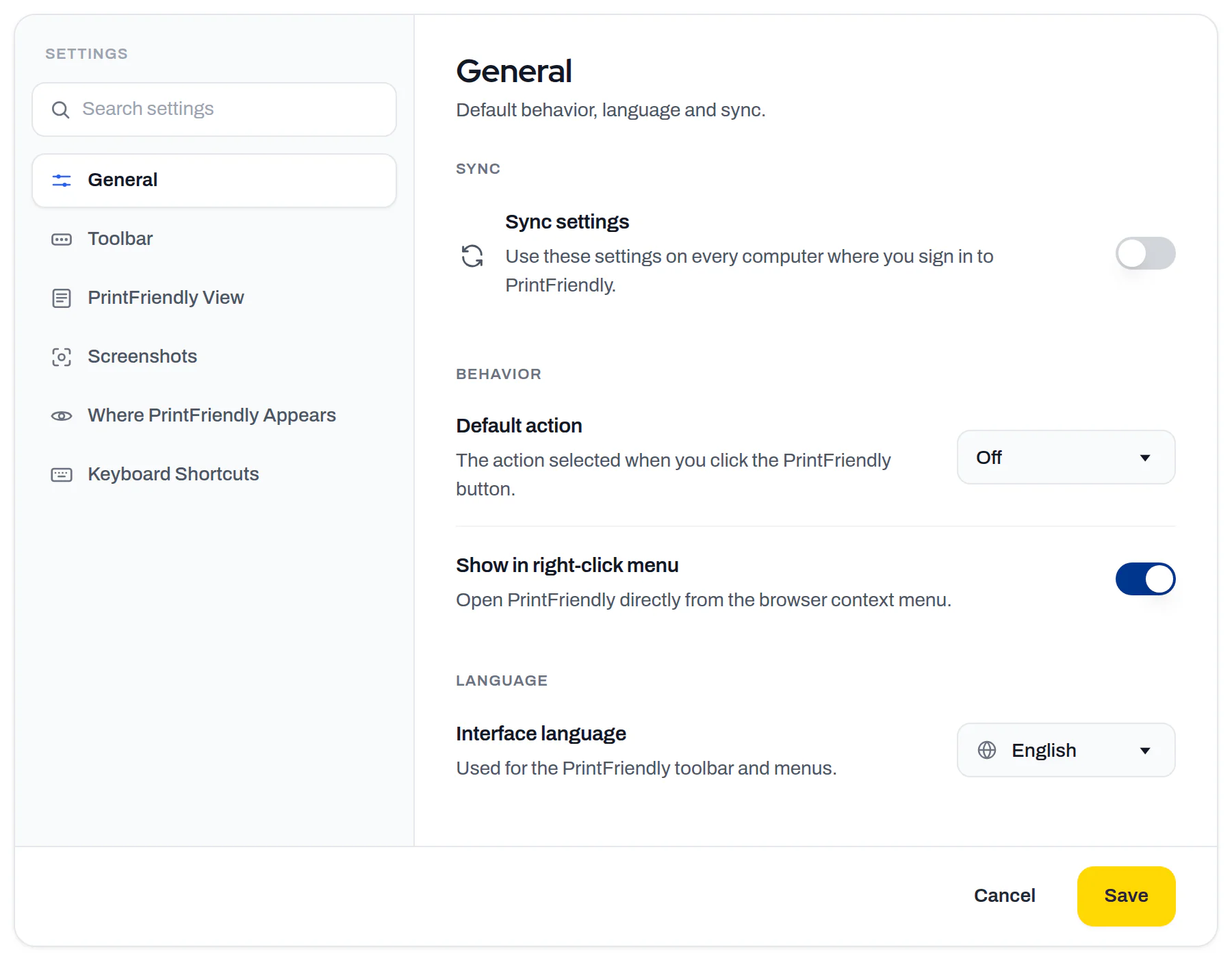
You set PrintFriendly up just right on your work computer: A4 paper, bigger text, page numbers on. Then you open it on your laptop, or in another browser at home, and it's all back to the defaults. Now the PrintFriendly extension can sync its settings across browsers: sign in to a free PrintFriendly account and they're the same everywhere you're signed in.
Why your browser couldn't do this already
Signing in to your browser brings your extensions to a new computer, but not always their settings. Chrome's developer docs recommend that extensions keep settings in Chrome sync, and that's a recommendation: each extension decides. Even then, Chrome's sync stays in Chrome. It never reaches Firefox or Safari. PrintFriendly's sync goes through your PrintFriendly account instead, so it doesn't matter which browser you're in.
How to turn it on
- Open PrintFriendly View on any page (click the PrintFriendly button, then PrintFriendly View) and click Settings.
- Under General, find Sync settings. If you're signed in, it's already on.
- Not signed in? Flip the switch and pick Create free account or I have an account. Sync turns on as soon as you're signed in.
- Sign in to PrintFriendly in your other browsers.
On a computer where you hadn't changed anything yet, you'll see Your settings came with you the first time they arrive.
What comes along, and what stays put
Paper size, text and image size, font, margins, page numbers and your toolbar setup all travel. A few things stay on each computer on purpose: your download folder, your Send to Kindle address and your read-aloud voice (voices come from the computer, and a Mac voice doesn't exist on Windows).
If two computers disagree
When this computer's settings differ from your account's, PrintFriendly asks Which settings should you use? instead of overwriting either. Pick your account's, this computer's, or Don't sync this browser. You can also switch Sync settings off in just one browser, and changes there stay there.
Where it works
Chrome, Edge, Firefox and Safari on Mac, with a free account. In Firefox you turn it on yourself the first time, and Firefox asks for your OK. There's more about the extension in the Help Center.
Sources
- browser.storage | API - Chrome for Developers, Google (Chrome for Developers). Chrome lets an extension save its settings to Chrome sync, but only if the extension chooses to use that storage.