How to Make a PDF From Any File, Photo or Web Page
Someone wants a PDF and you've got a Word file, a photo or a web page. Here's the quickest way to turn each one into a PDF.
A form, a school portal or a landlord wants a PDF, and what you've actually got is a Word file, a photo on your phone or a web page. How to make a PDF depends on what you're starting from, and each one has a quick route. Here they are, one by one.
Turn a document into a PDF
For Word, Excel and PowerPoint files, use our PDF Converter:
- Drop your file on the page, or click to choose it.
- It opens in our PDF editor, already turned into a PDF. Add text, a highlight or a signature here if you need to.
- Click Download.
The tools are free to use, and downloading the finished PDF needs a free account. That's the only catch, and it's the same for every tool in this post.
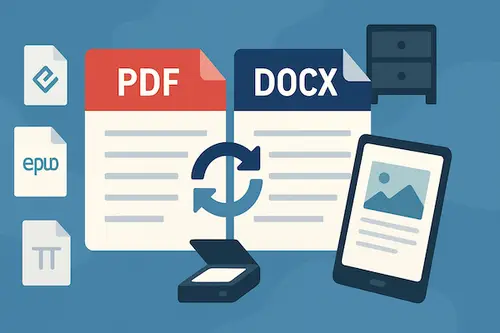
The converter takes more than Office files: images (JPG, PNG, GIF, BMP, WebP, TIFF and HEIC) and DRM-free ebooks (EPUB, MOBI and AZW3) work too. If you'd rather stay in the app you wrote the file in, Word, Excel and PowerPoint can all save a PDF themselves from the File menu, under Save As or Export. In Google Docs it's File, then Download, then PDF Document.
Turn photos and scans into a PDF
Photos have their own pages, which work just like the converter:
- JPG to PDF for most photos and scans
- PNG to PDF for screenshots, charts and graphics
- HEIC to PDF for iPhone and iPad photos, even in a browser that can't open HEIC files
Each one opens your image in the PDF editor first, so you can type a note, highlight something or add your signature before you download. Handy when the photo is a form you've just filled in by hand. They work in your phone's browser too, so the photo doesn't have to go to a computer first.
These pages take one image at a time. To put several photos into one PDF, turn each one into a PDF, then drop them all on Merge PDF. Drag them into the right order, turn any that are sideways, and merge. You get one file with a page per photo.
If the "photo" is really a sheet of paper, skip the camera roll and use Scan to PDF. It uses your phone's camera, straightens each page and puts them together in one PDF, with no app to install.
Turn a web page into a clean PDF
Every browser can print a page to PDF, and for some pages that's fine. For most articles, recipes and receipts, though, you get the ads, the menus, the cookie banner and a sidebar of "you might also like" along with the bit you wanted.
That mess is the reason PrintFriendly exists. Paste the page's address into the Print or PDF a web page box on our home page and click Go. You get just the article, without the ads and clutter. Want it even shorter? Click Delete, then click anything you don't want, like a photo or a paragraph, and it's gone. Undo brings back the last thing you removed. When it looks right, click PDF to save it (or Print, if paper is what you were after).
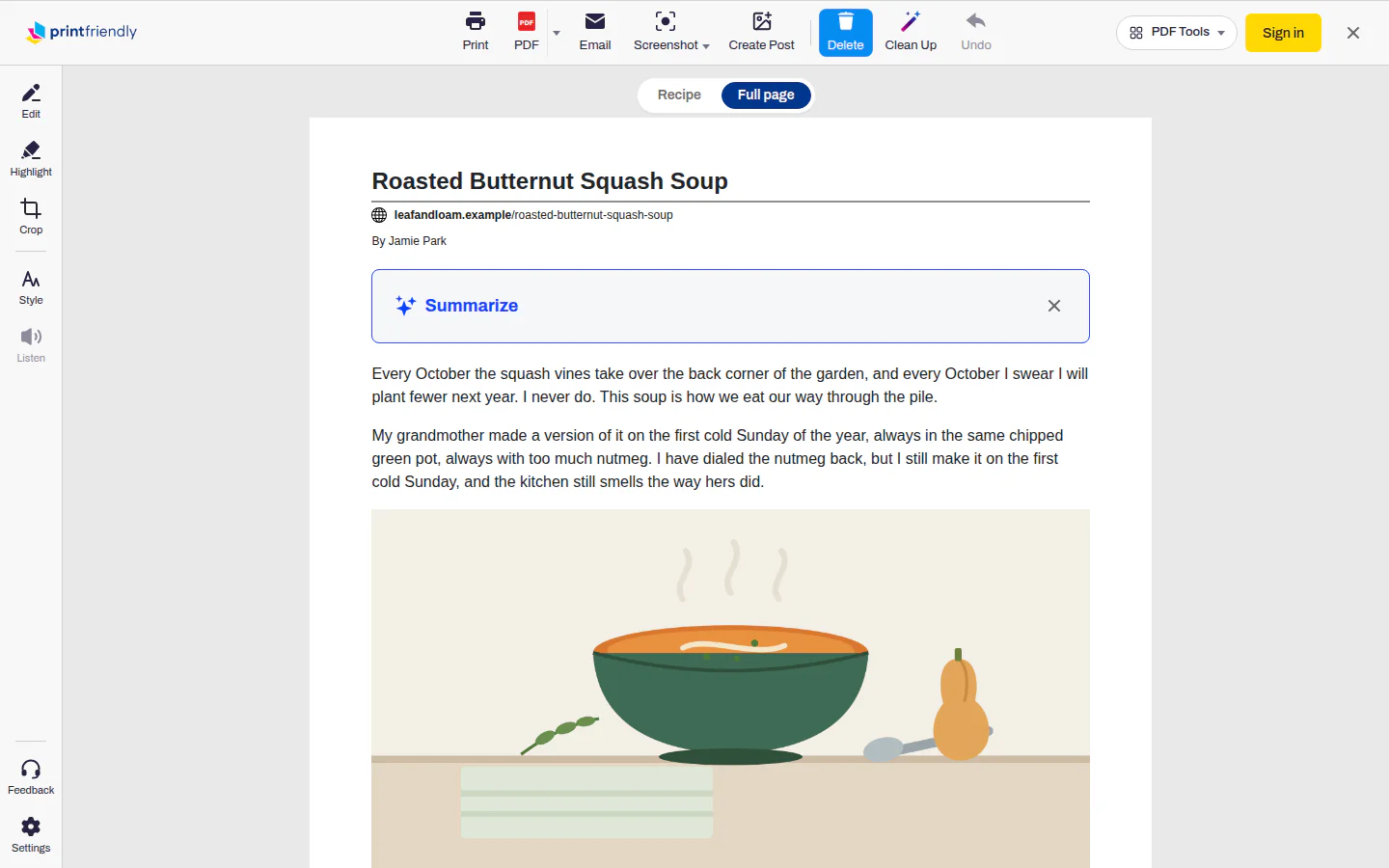
If you do this often, the browser extension is faster. Click the PrintFriendly button in your toolbar and choose PrintFriendly View. Delete mode is already on, so one click removes one paragraph, image or list item. When it looks right, click PDF. The extension works in Chrome, Edge, Firefox and Safari.
There's a longer walkthrough, with more tips for tricky pages, in How to save a web page as a PDF.
Make a PDF with what's already on your device
Don't want to use any tool at all? Your computer and phone can already make a PDF from almost anything that prints. On a web page, though, you get everything the page prints, clutter included.
- Windows: open the file, choose Print, and pick Microsoft Print to PDF as the printer. Click Print, then choose where to save the file.
- Mac: choose File, then Print. Click the PDF menu at the bottom left of the print window and choose Save as PDF.
- Chromebook (or Chrome on any computer): choose Print, set Destination to Save as PDF, and click Save.
- iPhone and iPad: tap the Share button, then Print. On the print screen, tap the Share button at the top and choose Save to Files. That last step is the one people miss: without it, you've only got a preview.
- Android: tap Share, then Print. Set the printer at the top to Save as PDF and tap the PDF download button.
Once you have the PDF
Need several files as one? Use Merge PDF. Too big to email or upload? Compress PDF makes it smaller. Need to fill it in or sign it? Open it in Edit PDF. Made it from a scan and can't select the text? OCR PDF makes it searchable, so you can find and copy words in it.
What needs a free account, how big a file can be and how long files are kept are all on the PDF Tools help page.
Frequently Asked Questions
How do I make a PDF for free?
Our PDF tools are free to use. Downloading the finished PDF needs a free PrintFriendly account. If you'd rather not sign up, the Print to PDF built into Windows, macOS, iPhone and Android costs nothing.
How do I combine several images into one PDF?
Turn each image into a PDF with JPG to PDF or PNG to PDF, then drop all of them on Merge PDF. Drag them into the order you want and merge, and you get one PDF with a page per image.
How do I make a PDF on a Mac?
Open the file, choose File, then Print. Click the PDF menu at the bottom of the print window, choose Save as PDF, and pick where to save it.
Sources
- Save or convert to PDF or XPS in Office Desktop apps, Microsoft. Word, Excel and PowerPoint can save a file as a PDF from the File menu, under Save As or Export.
- Print documents on your Mac, Apple. On a Mac, the PDF menu at the bottom of the print window has a Save as PDF option.